Overview
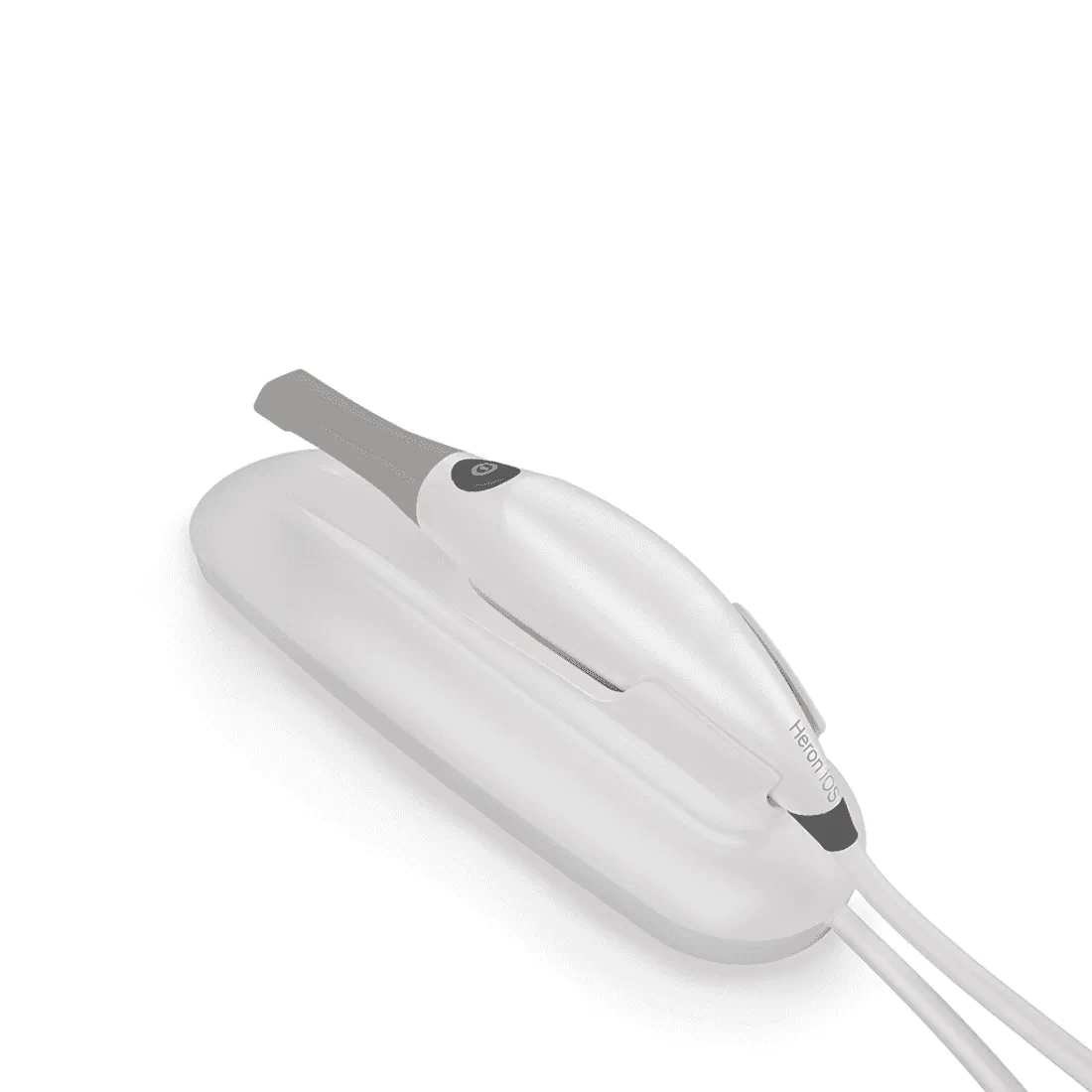
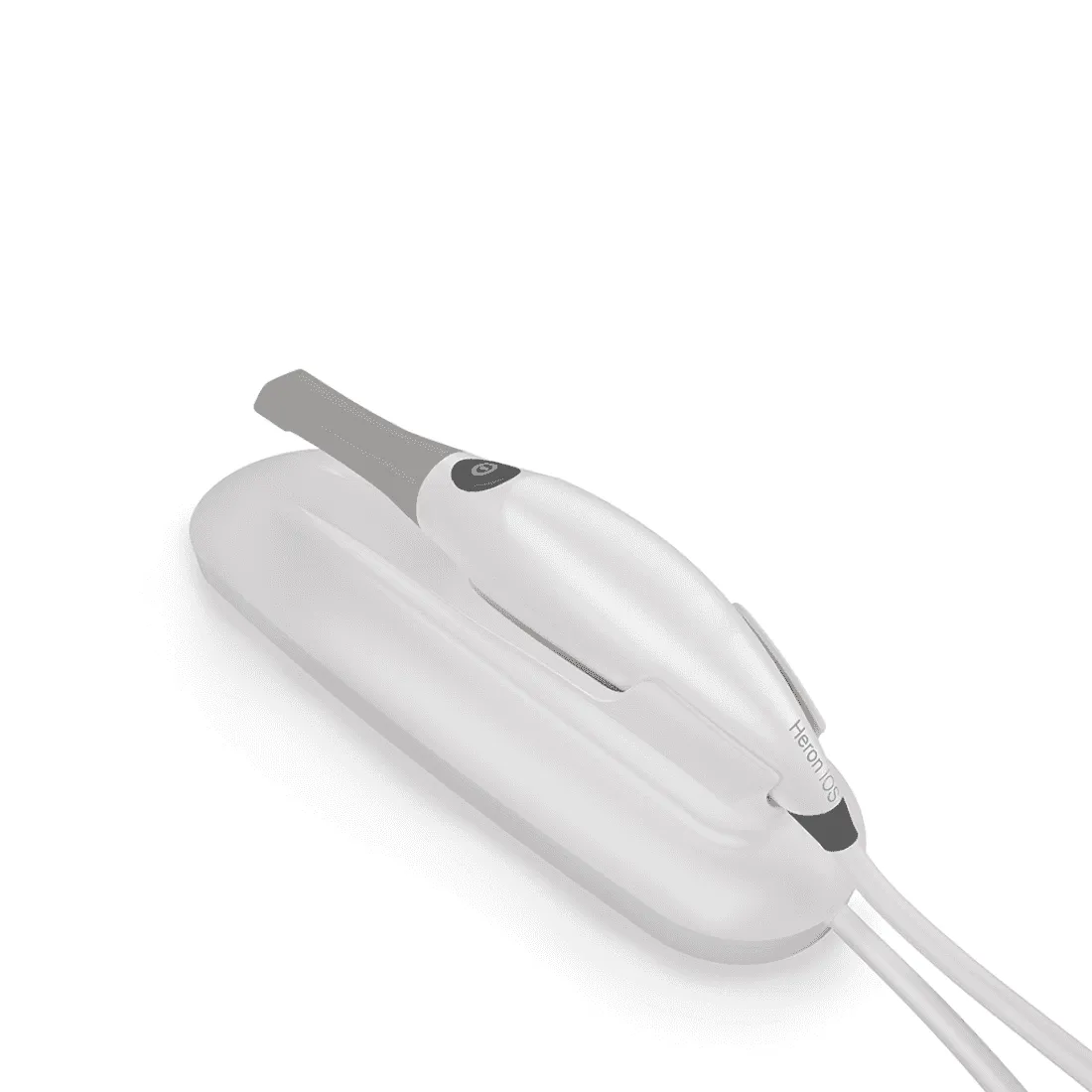
The Heron IOS intraoral scanner seamlessly integrates with CAD/CAM systems, delivering precise dental scans for restorations.
Pricing
| MRP (list) | ₹0 |
|---|---|
| Discount | 0% |
| Offer price (rounded) | ₹0 |
| You save vs MRP | — |
Offer = MRP × (1 − discount%), rounded to whole rupees. Confirm on Teethment before purchase.
Features
Compact, lightweight, and ergonomic design
Active stereo imaging for precise intraoral scans
Reusable, autoclavable scanner tip for hygiene
Fast, accurate scanning with minimal physical effort
Details
Heron Intraoral Scanner (IOS) presents a dental solution that merges a lightweight, compact design with advanced technology for precise digital intraoral scans. Designed with dentists and patients in mind, this user-friendly scanner ensures a swift, accurate, and comfortable scanning experience. Certified to meet stringent standards, including IEC 60601-1, it complies with US FDA Regulations and EU Medical Device Directive. The scanner supports a wide range of indications, from anatomic crowns to sleep appliances, catering to diverse dental needs. With a hand-held, chairside design, it offers active stereo imaging, and its 24-bit color scanning captures detailed information. The accompanying case management application simplifies order processing, while the system's compatibility with CAD/CAM systems enhances workflow efficiency. Operating with Windows 10, the scanner demands minimal system requirements. Maintenance is hassle-free, with autoclavable tips, and the scanner's cloud integration streamlines communication with labs. The Heron™ IOS is a reliable, calibrated solution, ensuring optimal dental restorations and prosthetic devices.
Advantage
User-Friendly Design: The scanner's lightweight, compact, and ergonomic design ensures ease of use for both dental professionals and patients, facilitating a comfortable scanning experience.
Versatile Indications: With support for a wide range of indications, from anatomic crowns to sleep appliances, the scanner caters to diverse dental needs, making it a versatile tool in dental practice.
Certified Compliance: Certified to meet stringent standards such as IEC 60601-1, US FDA Regulations, and EU Medical Device Directive, ensuring safety, reliability, and adherence to regulatory requirements.
Advanced Imaging Technology: The hand-held, chairside scanner utilizes active stereo imaging and 24-bit color scanning to capture detailed information, providing accurate digital intraoral scans.
Efficient Workflow: The system's compatibility with CAD/CAM systems streamlines the workflow, enhancing efficiency in the design and manufacturing of dental restorations and prosthetic devices.
User-Friendly Software: The accompanying case management application offers an intuitive interface for order processing, making it easy for dental professionals to manage cases and communicate with labs.
Cloud Integration: The scanner's integration with Heron Cloud facilitates seamless file transfer and communication with labs, enhancing collaboration and streamlining the overall workflow.
Optimal Patient Experience: Designed with patient comfort in mind, the scanner ensures a fast and accurate scanning process, contributing to a positive and efficient dental visit.
Minimal System Requirements: Operating with Windows 10 and requiring minimal system specifications, the scanner is easily integrated into existing dental practice setups.
Calibrated Reliability: Factory-calibrated for precision, the Heron™ IOS Intraoral Scanner eliminates the need for additional calibration, ensuring consistent and reliable performance in dental applications.
Key specifications
Scanner Type:
Hand-held (chairside) scanner with active stereo imaging.
Design:
Compact, lightweight, and ergonomic for easy operation with minimal physical effort.
Dimensions:
Base Size: L 306mm, W 98mm, H 72mm
Scanner Size: L 256mm, W 43mm, H 43mm
Power Requirement:
DC5.0V / 4A (Power supply included).
Scanner Tip:
Reusable, sterilizable using a steam autoclave.
Acquisition Method:
Intraoral camera with active stereo imaging.
Color Scanning:
24-bit (8-bit per channel).
Scanning Process:
No powder or spray is required for tooth preparation.
Continuously scans and accumulates (stitching) depth and color data.
Scanner-to-tooth distance: 0 – 12mm.
Operator Accessible Part:
Handpiece with possible contact duration by the operator: 10 min ≤ t.
Patient Accessible Part (Type B Applied Part):
Tip with possible contact duration by patient: 10 min ≤ t.
Computer – Scanner Interface:
USB 3.0.
Output File Format:
STL, PLY, OBJ.
Compatibility with CAD/CAM Systems:
Open Architecture Output format compatible with most Dental CAD systems.
Computer Requirements:
Operating System: Windows 10 (Excluding Windows 10 S, now defunct).
CPU: Intel i7 - 4 Cores or greater (e.g., i7 8700).
Memory: 16 GB of RAM or greater (DDR4 or better).
GPU: NVIDIA GeForce Graphics Processor Series (GTX): 1070 or greater - At least 6 GB video memory, 2000 Series (RTX): 2060 or greater - At least 6 GB video memory.
Environment Conditions:
Operating Temperature: 10°C ~ 40°C.
Operating Relative Humidity: 10% ~ 80% (non-condensing).
Storage Temperature: -20°C ~ 60°C.
Storage Relative Humidity: 10% ~ 80% (non-condensing) for indoor use only.
Ingress Protection:
IPX0 (Protection against harmful ingress of water: Ordinary equipment).
Protective Class:
Class IIIb.
Overvoltage Category:
I (Supplied from output DC source, max. 5 V. dc, 600 mA) of notebook or non-medical grade PC certified by IEC60950-1.
Max. Working Condition:
Continuous cycles with image capture and transmission from/to Notebook or non-medical grade PC.
Scanner Tip Reusability:
Autoclavable up to 50 times in a steam autoclave.
Power Input:
5V DC, 100-240V AC, 50-60Hz.
Cloud Integration:
Integration with Heron Cloud for file transfer and collaboration with labs.
Calibration:
Factory-calibrated; no additional calibration required.
Packaging
1 x Heron IOS System (Includes 3 Tips)
1 x USB 3.0 Cable
1 x AC/DC Power Adapter
Directions for use
Connecting Heron™ IOS Intraoral Scanner to PC
Hardware Setup:
Place the base on a stable surface.
Securely position the Heron™ IOS handpiece in its base.
Connect the AC/DC power adapter cable to the base (located underneath).
Attach the provided USB 3.0 cable to the base (located underneath).
Connect the other end of the USB cable to an available USB 3.0 port on your computer.
Connect the AC/DC power adapter to a power outlet.
Power On:
Turn on the Heron™ IOS scanner by pressing the power button on the handle.
Software Installation:
Install the Heron™ IOS software.
Follow the installation instructions provided with the software.
Configuration:
Launch the Heron™ IOS software on your computer.
Log in using your credentials if required.
Patient and Case Creation:
Create a new patient account if not done previously.
Follow the on-screen prompts to create a new case, providing necessary details and selecting the type of restoration.
Scanning Process:
Follow the on-screen instructions for scanning each arch, ensuring stability and precision.
Use the bite alignment feature if required, following the software prompts.
File Transfer (Optional):
If connected to a lab via Heron Cloud, you can send the entire case to the lab directly from the software.
Export scans and order forms to a location on your PC if needed.
Review and Finalization:
Review the scans in the 3D viewer within the software.
Add additional notes or attachments if required.
Finalize the scan process according to the software instructions.
Cloud Integration (Optional):
Utilize Heron Cloud for file transfer and collaboration with labs.
Ensure the scanner is connected to the internet for seamless cloud integration.
Heron™ IOS Intraoral Scanner - User Guide:
Shutdown:
Turn off the Heron™ IOS scanner by pressing the power button on the handle.
Close the Heron™ IOS software on your computer.
Setting Up and Connecting:
Place the base on a stable surface and securely position the Heron™ IOS handpiece in its base.
Connect the AC/DC power adapter cable to the base (located underneath).
Attach the provided USB 3.0 cable to the base (located underneath).
Connect the other end of the USB cable to the computer.
Connect the AC/DC power adapter to a power outlet.
Components Overview:
Base and scanner
Tip
Scan Button
Handpiece
USB 3.0 Cable
AC/DC Power Adapter
Settings:
Configure language, 3D output format, picture formats, start page preference, and workflow options.
View software and scanning module versions, check for manual updates, and access user manual and support.
System Configuration:
Export/import patient database.
Configure sounds during scanning.
Manage users, including addition, editing, and deletion.
Set up and select connections with labs.
Customize order forms, including tooth numbering and shade systems.
Cloud Integration:
Connect with Heron Cloud for file transfer and collaboration.
Edit profile, change password, create groups, and customize case view settings.
Starting a Scan:
Log in and create a new patient account on HeronCloud.com.
Connect with a lab through the connections menu.
Add HeronCloud™ connection to settings.
Create a new case with order details and restoration selection.
Follow on-screen instructions for scanning each arch, ensuring stability and precision.
Use the bite alignment feature if required.
Case Management Software:
Access the scans directly for export or use HeronCloud™ for file transfer.
Navigate through patient and case views, applying filters if needed.
Create new patients and cases, and manage them efficiently using the case management application.
Cleaning and Maintenance:
Wipe down the scanner with EPA-approved disinfectants.
Clean the tip with soapy water and sterilize using a steam autoclave.
Dispose of the device following local environmental laws.
No user maintenance is required; contact technical support for issues.
Scanner Operation Tips:
Ensure proper tooth preparation; no powder or spray is needed.
Maintain a steady hand for accurate scanning; restart if needed.
Follow the scanning paths for mandibular and maxillary scans.
Use the bite alignment feature for quadrant or full arch scans.
Finalize the scan and review in the 3D viewer.
Warranty
No warranty provided
Image